
Can You Watermark Google Shopping Images? Shopify Guide
Google disapproves watermarked main images. See the Merchant Center rules, fix Shopify's Promotional overlay on image error, and still protect photos.
11 min readUpdated Oct 9, 2026
Can you put a watermark on Google Shopping product images?
No. Google Merchant Center disapproves products whose main image carries a watermark, logo, or other overlay that isn't physically part of the product, and those products stay out of Shopping ads and free listings until you replace the image. Shopify flags this as a “Promotional overlay on image” error, so keep your main (featured) product image clean and use watermarks only on images and places where Google's main-image rule doesn't apply.
The rule is about your product feed, the data Google uses for Shopping ads and free listings. It is not a statement about how your store ranks in regular search. This guide covers what Google Merchant Center's image requirements actually say, how to fix a disapproved watermarked image step by step, and a protection setup that keeps your Shopify product photos protected without putting your Google Shopping listings at risk.
Policy wording checked on October 9, 2026
Google and Shopify update their help pages often. Every quote below links to its source. Open the linked page before you change your feed, in case the wording has moved on.
What Google Merchant Center says about watermarks
The main product image (image_link)
Your main image is the one you submit in the image_link attribute, and it is the image Google holds to its strictest rule. Under promotional elements, Google's image requirements ban “Any overlay, for example, watermarks, brand names, logos (unless it's an inherent part of the product itself).” The same page also names “Overlays and watermarks: Stock photo watermarks, copyright symbols, or graphic stamps” and “Superimposed logos or store names added in post-production.”
The consequence is direct: an image that breaks these rules is disapproved and “won't appear on Google surfaces.” A logo printed on the product itself is fine. A logo or copyright line you added on top of the photo is not.
Source: Google Merchant Center Help, Image link [image_link] requirements.
Additional images (additional_image_link)
Additional images are the extra product photos you send in additional_image_link. Under its best practices, Google says not to submit “Images with a watermark, or text not relevant to the image such as trademark or store info.”
Read that wording carefully. On this page Google frames it as a best practice, not the explicit disapproval rule it applies to the main image. That still doesn't make watermarked additional images a safe bet: Google advises against them, so if Google Shopping is an important channel for you, keeping every image Shopify's channel sends clean is the cautious choice.
Source: Google Merchant Center Help, Additional image link [additional_image_link].
Other overlays that trigger the same issue
Watermarks aren't the only overlay Google flags on product images. Its “Text on image” guidance covers promotional elements more broadly, including:
- Calls to action added to the photo.
- Prices and offers, such as free shipping.
- Promotional adjectives.
- Condition text, such as “New.”
- Barcodes and QR codes.
This matters for stickers and badges. A “Sale” or “New” sticker burned into your main image breaks the same rule as a logo watermark, even though it looks like merchandising rather than protection.
Source: Google Merchant Center Help, How to fix: Text on image.
| Image | Feed attribute | What Google says | Safe choice |
|---|---|---|---|
| Main product image | image_link | Watermarks, logos, and overlays that aren't part of the product are disapproved. | Keep it clean. |
| Additional images | additional_image_link | Listed under best practices as something not to submit. | Keep them clean if Shopping matters to you. |
| Stickers or promo text on the main image | image_link | Covered by the “Text on image” issue. | Leave them off the main image. |
Does this affect organic SEO?
Merchant Center reviews apply to the images in your Shopping and free-listings feed. Google's main-image rule says nothing about how a watermarked photo on your product page ranks in regular search or Google Images, so don't read it as an SEO penalty. Treat it as a feed requirement.
How the “Promotional overlay on image” error shows up in Shopify
If you sell through Shopify's Google & YouTube channel, a watermarked main image surfaces as a product issue called “Promotional overlay on image.” Shopify's troubleshooting guide gives the fix in one line: “Replace images that contain text, logos, watermarks, or promotional badges with clean product images.”
Source: Shopify Help Center, syncing products with the Google & YouTube channel.
In Merchant Center, the same problem appears as “Text on image” in the Needs attention view under Products. Google says these products “are disapproved and remain disapproved until their images are updated.”
Which Shopify image does Google treat as the main image?
In most setups the first (featured) product image is the one Google treats as the main image. Check the image shown for the product in Merchant Center to be sure. We haven't found this behavior documented on a Shopify help page, so verify it for your own store instead of assuming it.
Check variant images too
Variant images can be sent for variant items. RD Watermark watermarks variant images the same way as any other product image, so if a variant has its own image, leave that image unticked too, or restore it, because Google may use it as that variant's main image.
How to fix a disapproved watermarked image
- Find the affected products. In Merchant Center, open Products, go to Needs attention, and filter by the “Text on image” issue. Shopify's Google & YouTube channel shows the matching “Promotional overlay on image” error on the product.
- Replace the main image with a clean version in Shopify. If RD Watermark applied the mark, open the product in Shopify admin, choose More actions, then Restore original, select the image, and confirm. RD Watermark writes the stored original back in the same position, so it stays the featured image.
- Wait for Shopify's Google & YouTube channel to resync the product and for Google to review it again. Google doesn't publish a fixed timeline for this, so check the product's status in Merchant Center rather than counting days.
- Optional: turn on automatic image improvements in Merchant Center as a fallback, not as the plan.
Automatic image improvements is off by default. When it's on, Merchant Center tries to remove “any text, watermarks, overlays, or logos” from product images. Google also warns that it may not work with “strong or dense watermarks,” so uploading a clean image is still the more reliable fix.
Source: Google Merchant Center Help, automatic image improvements.
For restore versions and plan limits, see Restore originals.
How to protect product photos without losing Google Shopping
You don't have to choose between protecting your Shopify product photos and showing up on Google Shopping. You do have to decide which images get a watermark.
Keep the main (featured) image clean
This is the image Google judges against its hard rule. Leave it unwatermarked, and keep stickers, badges, and promotional text off it as well.
Watermark the images thieves actually take
Lifestyle shots, detail crops, and photos of original designs or artwork are usually where a visible watermark does the most good, and they are rarely your main image. Those are the natural candidates for protection.
Be realistic about the trade-off. Google advises against watermarks on additional images too. If you rely heavily on Shopping, you may decide to keep every image Shopify's channel sends clean and lean on storefront protection and monitoring instead.
Use storefront protection for the clean image
RD Watermark's storefront protection can disable right-click, image dragging, and text selection, and it can make developer-tool shortcuts less convenient. It's included on every plan, runs through the theme app embed, and doesn't change the image file, so your feed image stays exactly as clean as you uploaded it.
Be clear about its limits: these controls deter casual copying only. They don't stop screenshots or scrapers, and our own documentation says the same.
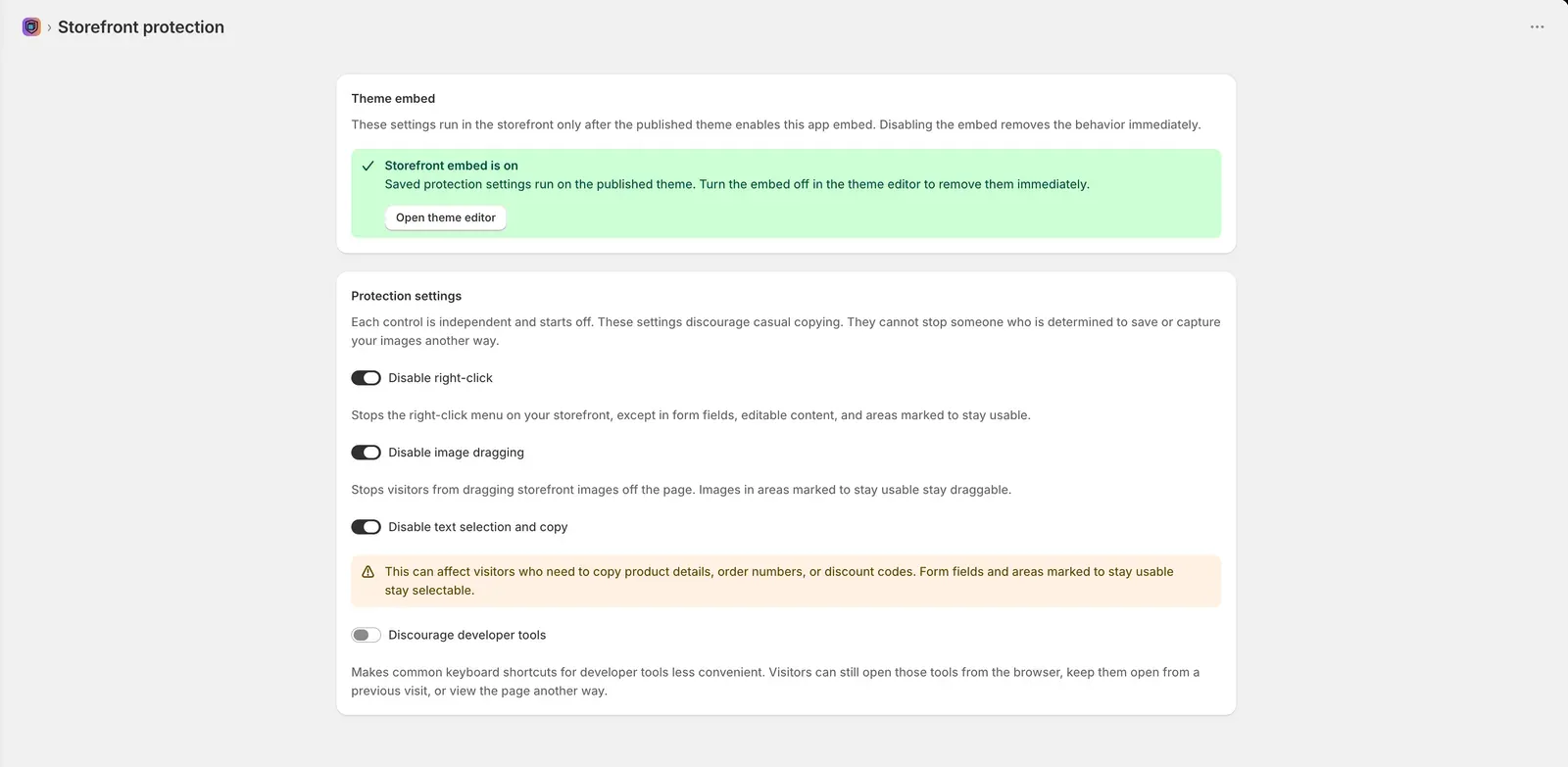
Set it up in Storefront protection settings.
Keep originals so you can undo
RD Watermark stores the original before every apply. How far back you can restore depends on your plan: Free and Starter keep the current file plus the original, Pro adds the previous version, and Unlimited keeps the full timeline.
Compare plans and restore depth before you plan a large change.
Keeping main images clean with RD Watermark
No Google Shopping integration
RD Watermark has no Google Shopping or Merchant Center integration and sends nothing to your Google feed. It watermarks images in Shopify. Shopify's own Google & YouTube channel syncs your product images to Google, so whatever image is on your Shopify product is what Google receives.
Choose exactly which images to watermark
On every plan, you choose the images product by product. Open the product in Shopify admin, choose More actions, then Apply watermark, and pick a profile. Every image starts selected, so clear the checkbox for the featured image before you choose Apply. On products with many images, you may need to expand the list first.
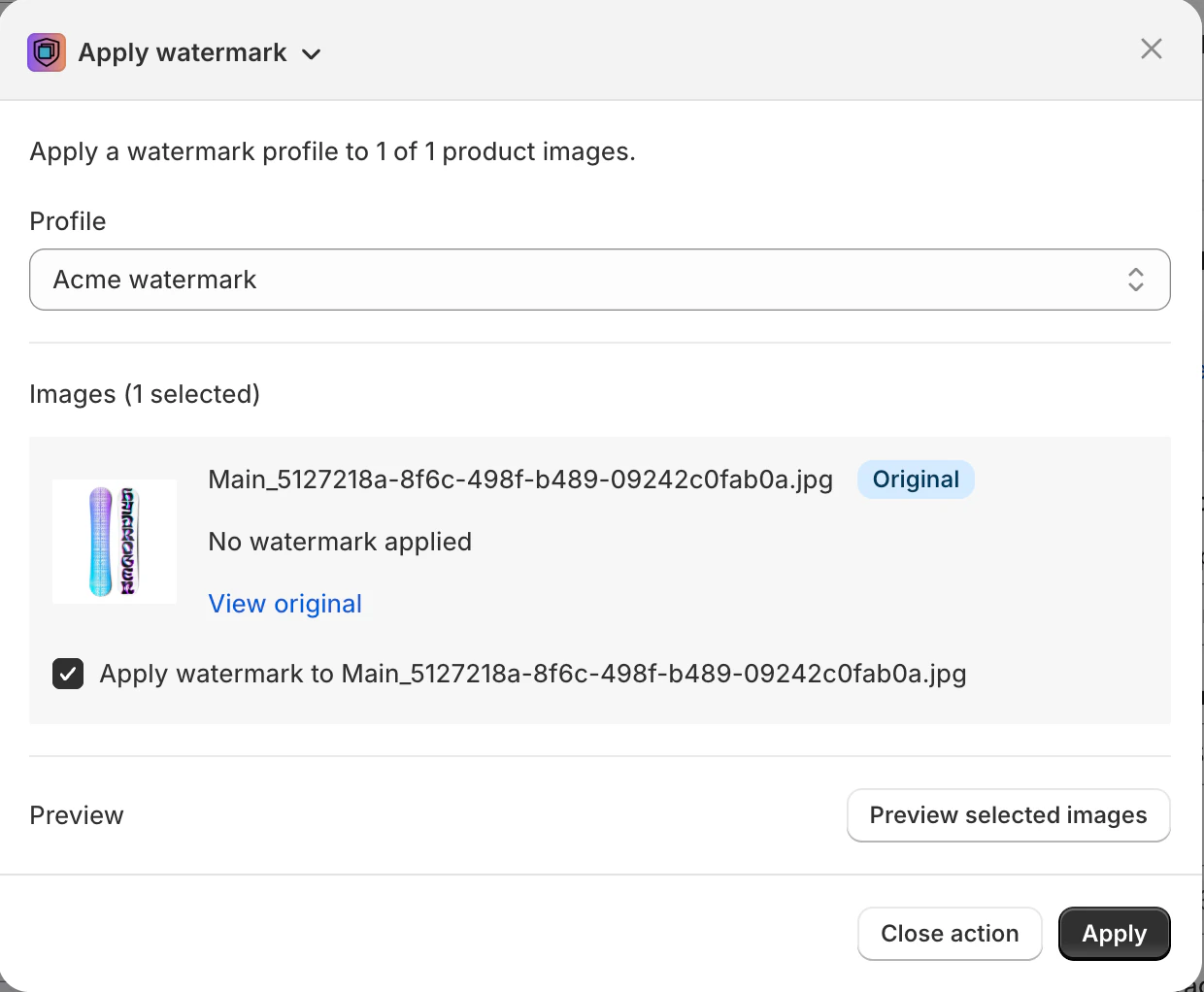
A watermarked image keeps its position. If you watermark the featured image, it stays the featured image, and Shopify's Google & YouTube channel will sync the watermarked version. That's why the main image should be left out.
Step by step: apply your first watermark.
Single-image apply and restore actions are covered in Product workflow settings.
Restore per image or in bulk
Restore a single image from the product page, or run a bulk restore job across many products on Pro and Unlimited. Either way, originals return to the same position.
Bulk apply has no “all except featured” option yet
Bulk apply (Pro and Unlimited) has an Image scope setting with two options: “All product images” or “Featured image only.” There's no option that skips the featured image, so a single bulk job can't leave your main image clean on its own.
The workaround is two jobs. Run bulk apply with “All product images,” then run a bulk restore with the scope “Featured image only” for the same products, and your featured images end up clean. Images that are watermarked and then restored don't count against your image quota, so this doesn't use up quota on featured images. Both bulk jobs need Pro or Unlimited; on the Free or Starter plan, untick the featured image product by product instead.
See how to bulk watermark Shopify product images for estimates, skipped images, and job history.
Automation rules can't skip the featured image
Automation rules, available on every plan, offer the same two scopes: “All product images” or “Featured image only.” A rule set to “All product images” will watermark the image Google sees. If a product depends on Shopping, watermark it manually instead of through a rule.
Read more about automation rules.
AI-generated labels are not stickers
RD Watermark's AI-generated label is a storefront overlay. The theme app embed shows it on your product pages based on a product setting, and it isn't written into the image file, so it doesn't change the image Shopify's channel sends to Google.
Stickers are different. They're drawn into the image itself, so a “Sale” or “New” sticker on the main image falls under Google's overlay rule.
Google also says AI labels added with its own label settings won't violate its overlay and watermark policies. See Use AI content label settings and disclosures.
Other watermark apps and Google Shopping
Some watermark apps advertise a Google Shopping workaround. Easy Watermarks' App Store listing says it “Supports Google Shopping by automatically syncing your original photos.” We haven't tested how that works. RD Watermark doesn't offer anything like this. It only watermarks images in Shopify, so the way to keep Google's main image clean is to leave the featured image unwatermarked.
Source: Easy Watermarks on the Shopify App Store (listing text checked October 9, 2026).
Frequently asked questions
Can I put a watermark on Google Shopping product images?
Not on the main image. Merchant Center disapproves main images with watermarks, logos, or overlays that aren't part of the product, and the product stays out of Shopping ads and free listings until the image is replaced. Google also advises against watermarks on additional images.
What does “Promotional overlay on image” mean in Shopify?
It's the Google & YouTube channel error for product images with text, logos, watermarks, or promotional badges. Shopify's fix is to replace those images with clean product images. In Merchant Center the same issue is called “Text on image.”
Are watermarks allowed on additional product images?
Google's additional-image guidance lists “images with a watermark” as something not to submit. If Google Shopping matters to you, keep the images Shopify's Google & YouTube channel sends clean, and protect them with storefront controls instead.
Can Merchant Center remove a watermark for me?
If you turn on automatic image improvements (off by default), Merchant Center tries to remove text, watermarks, overlays, and logos. Google says it may fail on strong or dense watermarks, so uploading a clean image is more reliable.
Does RD Watermark connect to Google Shopping?
No. RD Watermark has no Google Shopping or Merchant Center integration. It watermarks images in your Shopify admin, and Shopify's own Google & YouTube channel syncs whatever images are on the product. Leave your featured image unwatermarked and restore any watermarked original that Google disapproves.
How do I undo a watermark that caused a disapproval?
In Shopify admin, open the product, choose More actions, select Restore original, and pick the image. RD Watermark writes the stored original back in the same position. For many products, run a bulk restore job (Pro and Unlimited plans).
Will an AI-generated label get my product disapproved?
RD Watermark's AI-generated label is shown on your storefront by the theme app embed, not written into the image file, so it doesn't change the image Google receives. Separately, Google says AI labels added through its own AI label settings don't violate its overlay policy.
Protect the images Google doesn't need to see
Protect the images Google doesn't need to see. Install RD Watermark free, choose which product images to watermark, and restore any original from Shopify admin.
Install freeNew here? Start with the overview of RD Watermark for Shopify.
Compare plans and restore depth before you choose a bulk workflow.